Tuesday, November 8, 2016

Mac Technique: How to install Windows Support Software without Boot Camp icon in Windows 10

Recently I upgraded the OS of a MacBook Pro to macOS Sierra 10.12.1 and then install Windows 10 with Boot Camp Assistant (Applications->Utilities->Boot Camp Assistant). Windows was easily installed, but not the Windows drivers for Mac.

The "Open Boot Camp Help" option in macOS's Boot Camp Assistant says that Boot Camp icon/Boot Camp Control Panel is required for the configuration of hardware in Windows:


Unfortunately, I couldn't to find the Boot Camp icon/Boot Camp Control Panel in Windows. Without proper drivers installed in Win 10, the Wi-Fi function did not work. This is a really big problem!!

After searching for the solution for a couple of days, I found this:

No option to download windows support software for Bootcamp Assistant

So I followed it to select Boot Camp Assistant->Action->Download Windows support software:


It takes a while for the download.
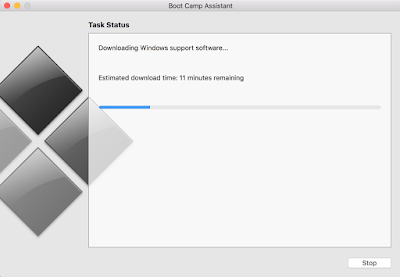


I store the Windows Support Software in a USB drive.

After booting in Windows, I simply select the Windows Support Software at USBDrive\WindowSupport\BootCamp\Setup and the drivers are then successfully installed. The Wi-Fi function then works normally.

The Apple Software Update also shows up automatically after installing the Windows drivers and rebooting Windows.

Saturday, November 5, 2016

Mac Technique: External keyboard configuration for Ctrl+C Copy hotkey

To use the windows style copy (Ctrl+C) or paste (Ctrl+V) hotkeys with an external USB keyboard connecting to a Mac, modify the keyboard settings as below:

Select System Preferences -> Keyboard -> Modifier Keys...

Make sure the USB keyboard is selected and modify the command and control keys as below:


Tuesday, October 11, 2016

Mac Technique: Refresh a network folder in Finder

[command] + [up]

then

[command] + [down]     OR    Click the network folder with a mouse.

Monday, September 26, 2016

Mac Technique: Arrange bookmarks of Chrome brower in alphabetical order

When I tried to sort my Mac's Chrome bookmarks in order with this procedure:

Select => Bookmarks => Bookmarks Manager => Organize => Reorder by title

The bookmarks are sorted in order.

However, if I turned off the Chrome app and restarted it. The alphabetical order of bookmarks was gone!

Then I find a solution from:

How do I arrange bookmarks in order? (Google Chrome Help Forum)

I simply:

1. Do this same step as before:

Select  => Bookmarks => Bookmarks Manager => Organize => Reorder by title

2. Cut all the reordered bookmarks and paste them back immediately.

Then the bookmarks are arranged in order even after the restart of the Chrome app!!

Wednesday, September 21, 2016

Mac Technique: Extended Desktop and Mirror Display Switch Hotkey

Hotkey to switch between extended desktop and mirror display:
延伸桌面與鏡像顯示的切換快捷鍵:

[command] + [F1]

Monday, September 5, 2016

Mac Technique: Force to terminate an app

When an app cannot be closed with the right mouse click, try this:

Press [option]+[command]+[esc]

Then choose the app to be terminated in the pop-up menu and select Force Quit.

Monday, August 22, 2016

Xcode Tip: A powerful hotkey/shortcut to format the indentation of multiple lines

To quickly format the code indentation, simply:

1. Select the text to be adjusted.
2. press (control) + (i) .

Animated example of the (control) + (i)  hotkey:


The (control) + (i) behaviour is the same as the Editor -> Structure -> Re-Indent selection.


Related Information:

Fix code indentation in Xcode
Xcode Tip: Hotkeys/Shortcuts to move multiple lines horizontally (command ⌘) + ( [ ) or ( ] ) 
Xcode Tip: Comment Hotkey/Shortcut